You have a WordPress website with clear services, great projects and satisfied customers. Yet when you ask ChatGPT a question about your field, it mainly mentions other companies. So where do you start: your copy, your settings or a new plugin?
Making your WordPress website searchable in ChatGPT starts with accessible pages that answer a real customer question. Then make it visible who provides the answer and what it is based on. After that, check whether your page is found, used as a source, or whether your company is actually mentioned. Those three outcomes point you towards your next step.
This guide is about ChatGPT’s search feature, which can consult current web sources. You work from checking to improving. You will also learn which steps you can take with the Klusio plugin for WordPress.
What does it mean to be searchable in ChatGPT?
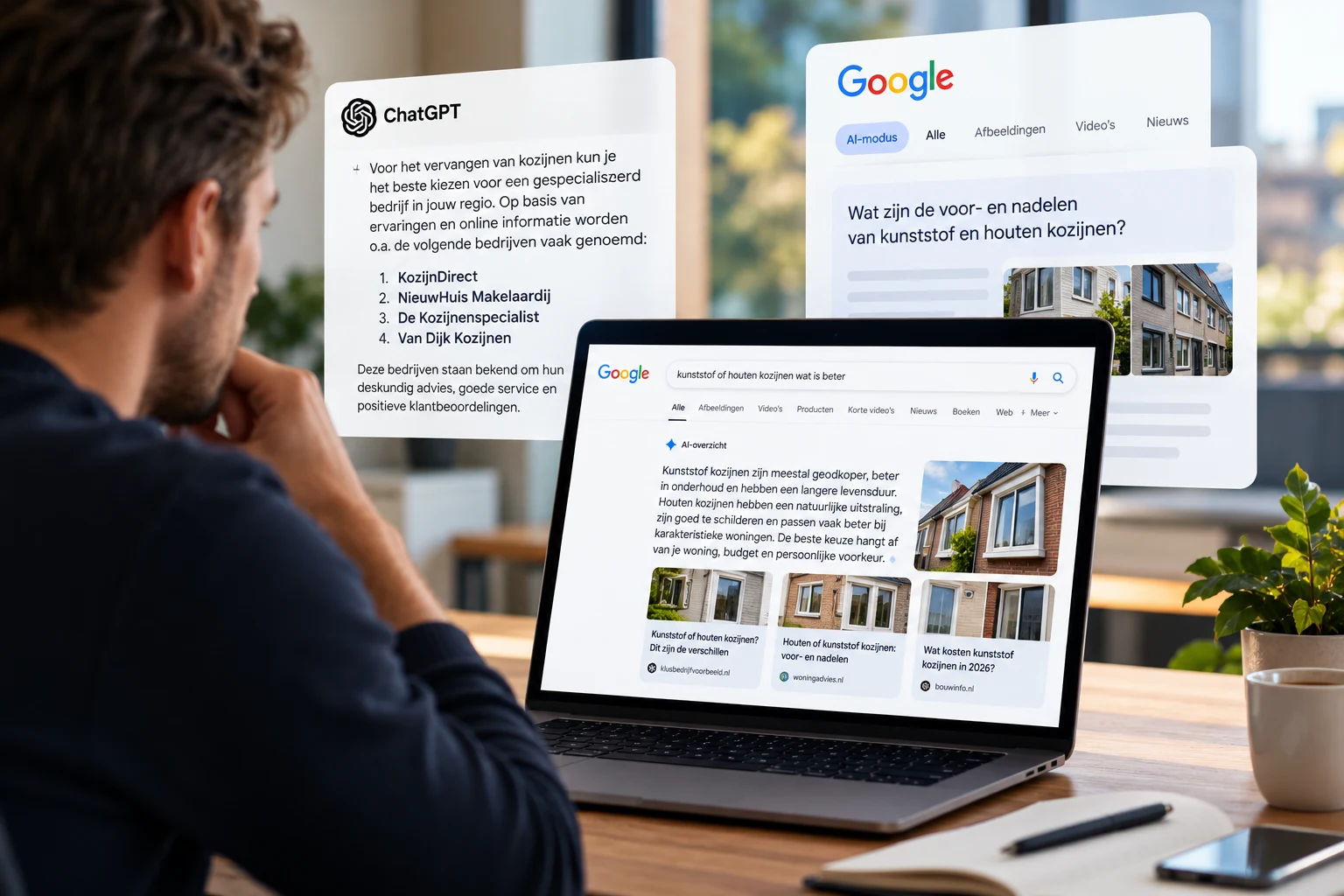
Suppose someone asks which accountant is suitable for a starting webshop. An answer may use your explanation about webshop bookkeeping as a source, without recommending your firm. Conversely, your company name can appear in the answer while the source is a comparison site.
When assessing a measurement, we therefore make this distinction:
- Found: in an AI check, a list of underlying search results may be available. If your page is in that list, then it is found. Save this list with the answer, as described in step 6. This does not in itself prove that the full page was read.
- Used as a source: the answer references your page. Check which statement that reference is attached to.
- Actually mentioned: your company name appears in the answer. Read the context: a recommendation, a neutral example and criticism mean different things.
- Suitability: for which customers, situations or systems does your approach work?
- Process: what happens after an enquiry and who does what?
- Choices and limits: what is included and when is additional work needed?
- Price and planning: which factors determine the quote and lead time?
- View a growth opportunity. The Growth Engine shows which part needs attention. Check the rationale and choose what you want to tackle.
- Work on the right page. The page assistant helps with supported text elements, alt text, and internal links. You compare the proposal with the existing content.
- Check the result. View the preview in your own theme, check links and display, and consciously approve the change.
- Keep track of what has been done. In WordPress you see proposals and drafts from your Klusio account. For more research, you can go directly from WordPress to the full environment.
Are you literally asking for your own company name? Then you are mainly measuring whether AI provides correct information about your company. For spontaneous search visibility, you also use questions where your brand does not appear, such as “Which accountant helps a webshop with international sales?”.
1. Check whether your public page is accessible
Open your main services page in a private window, while you are logged out of WordPress. Do you see the full text? Do the links work? Does no maintenance screen, login window or security check appear? A page that works for you as an admin can load differently for a new visitor.
Then check Settings → Reading → Search engine visibility. For a public business website, the option that discourages search engines from indexing the site should generally be turned off. WordPress describes in its explanation of the reading settings which instruction this option adds. This setting provides an instruction for indexing. It is not access security or separate permission for OpenAI crawlers. Check access for OAI-SearchBot separately, as described below. Keep a protected test environment protected.
Also check the setting of the individual page in your SEO plugin. An unintended noindex may still be present there. Also check the canonical setting: with it, you specify the preferred URL for this content. Have your web builder check whether it points to the correct page.
OAI-SearchBot and GPTBot have different tasks
According to the OpenAI crawler documentation, OAI-SearchBot is used for ChatGPT’s search feature. GPTBot has a different task: collecting material that can be used for model training. Those permissions can be configured separately.
Have your web builder check whether your robots.txt and hosting security give OAI-SearchBot access to the public content you want to be found. Keep private parts protected. A custom crawler setting provides access, not a guarantee of a mention.
Useful instruction for your web builder: “For this services page, check public accessibility, noindex, preferred URL and access for OAI-SearchBot. Note what you found and what you changed.” That provides more clarity than just asking whether the website is ‘AI-proof’.
2. Choose a customer question that matches a service
Start with a question you actually get in a sales conversation. For example, whether a real estate agent helps with buying a newly built home, or whether an administration firm also supports the switch from an existing accounting package. Such questions force you to be concrete.
Use your own conversations alongside Google Search Console. There you can see queries for which Google has shown your website. A low number of impressions can still relate to an important customer question. Search volumes from Google are also not a count of how often people ask the same question to ChatGPT.
First check whether you already have a suitable page. Expand a services page if the question belongs there. Create a separate article when someone needs a more extensive explanation or consideration. This prevents multiple pages that say almost the same thing.
For the broader approach, read our explanation of WordPress SEO. Here we focus on making your content usable for questions in ChatGPT.
3. Make the answer on the page concrete
Read only the first paragraph of your page. Does a new visitor then know who your service is for, what problem you solve and what they can expect from you? A general promise like “We take the burden off entrepreneurs completely” offers little to go on.
Example for an administration firm: “We guide webshops that switch to another accounting package. We check the opening balance, discuss the integrations with your webshop and agree which data you will provide.” Use such a description only when it matches your own services.
Then work out the questions the reader needs to make a choice:
Make headings recognisable and use regular text for important explanations. Do not put crucial information only in an image. In Elementor and Bricks, also check the public version of the page: what you see in the editor does not yet tell you how the content is loaded for a visitor.
4. Show where your knowledge comes from
A real project description helps a visitor judge whether your experience matches their question. Describe the starting situation, the consideration, the work carried out, and what you checked afterwards. Where possible, add your own photos or a verifiable result, with permission and without making customer data public unnecessarily.
State who is responsible for the content. Only link a review to a project if you know that review is about it. Also check whether your company name, contact details and services match across your own website and relevant public profiles.
Google mentions original information, demonstrable experience and a clear author in its guidelines for helpful content. That is not a published ranking formula for ChatGPT. It is a useful starting point for making your page verifiable for readers.
5. Connect explanations, services and projects
A standalone article often tells only part of the story. Link from your explanation to the corresponding service. Link from that services page to a relevant project. Give the link descriptive text, such as “See how the switch to the new accounting package went”.
Check the destination before you publish. An old link, a redirect to the homepage or a reference to a barely related page does not help the reader. Only add an internal link when the next page answers a logical follow-up question.
For Google’s AI Overviews and AI mode, the usual basic SEO requirements still apply. Google explicitly says that no special additional requirements or AI files are needed. That is about Google, not automatically about every AI system. So start with accessibility and content before adding all kinds of extra files or schema.
How the Klusio plugin helps within WordPress
Improving a page consists of multiple small decisions: which explanation is missing, where a link belongs and whether the change can be placed safely within your existing design. The Klusio plugin brings that work closer to the place where you manage your website.
You can find Klusio in the official WordPress plugin directory. The local Website Check works without a Klusio account. It reviews a limited selection of public pages and posts for, among other things, missing alt text, unclear links, and heading structure. It is an initial content check. The result is not a ChatGPT listing or a full SEO audit.
Installing and connecting the plugin
In WordPress, go to Plugins → Add New Plugin and search for Klusio. Check that you have selected the plugin by Klusio, click Install Now, and then Activate. You need WordPress admin permissions for this.
Then open Klusio in the WordPress menu. You can start with the local Website Check or connect your website to your Klusio account. When connecting, you check the selected website and the requested permissions before granting access. If you don’t have an account yet, the plugin will guide you to the sign-up flow.
After connecting, you can continue within the granted permissions:
For supported Elementor and Bricks elements, Klusio uses the existing builder structure. Not every custom element is automatically editable. For controlled page changes, backups and restoration are available; Klusio checks whether the page has been modified in the meantime and blocks a conflicting change.
An SEO plugin that manages your titles, sitemaps, or structured data can continue its existing task. With Klusio, you organize the research, the proposals, and the content improvements. Review the installation and capabilities of the WordPress plugin before connecting your website.
6. Measure whether your improvement changes anything
Before the change, record which question you are tracking, which AI system was used, and which page you want to improve. Save the answer and the source links. Then note what you changed and when.
Repeat the check under similar conditions. Look separately at found pages, source use, and business listings. If the underlying search results are missing in a measurement, you cannot conclude that your page is not found at all. Answers can also differ by moment and context.
Combine these checks with Google Search Console and, if you track them, relevant visits and enquiries. A mention is interesting; whether someone then visits your site and gets in touch requires a separate measurement. Our guide on measuring AI search visibility helps you carry out those checks consistently.
Frequently asked questions
Do I need to submit my WordPress website to ChatGPT?
A mention cannot be forced with a submission. First make sure the public content is reachable and check access for OAI-SearchBot. Then investigate whether your page answers the relevant customer question well.
Will I be mentioned automatically by the Klusio plugin?
No. The plugin helps you carry out checks and improvements. Whether ChatGPT uses your page or mentions your business also depends on the question, other available sources, and the answer being compiled at that moment.
Do I need to publish a new article every week?
First look for where a concrete answer is missing. Sometimes a new explainer page is useful. Sometimes an existing services page mainly needs a better example, a clearer answer, or a good internal link. Choose the improvement based on that need.
How quickly will I see results?
There is no fixed timeframe to promise. Restoring access, having content fetched again, and being mentioned are different steps. Keep a baseline measurement and compare multiple measurement moments, without presenting one favorable answer as a lasting result.
Start with one important services page
Choose the page you would like to receive more relevant enquiries for. Check that it is reachable, answer one real customer question, and add one suitable piece of evidence. Then look at the internal links and the mobile view. With such a scoped improvement, you can assess in a targeted way what changes.
View Klusio on WordPress.org or read how to connect WordPress to your Klusio account.