You want to outsource SEO, but you also want to stay in control. Makes sense. The fastest way to avoid hassle is simple: only grant access that matches what you outsource. For measuring and research, less is often needed than people think. For technical fixes and publishing, more is needed than just “logging in real quick”.
Our starting point at Klusio: you remain the owner of your website and accounts. So we work with invitations and roles, without sharing passwords.
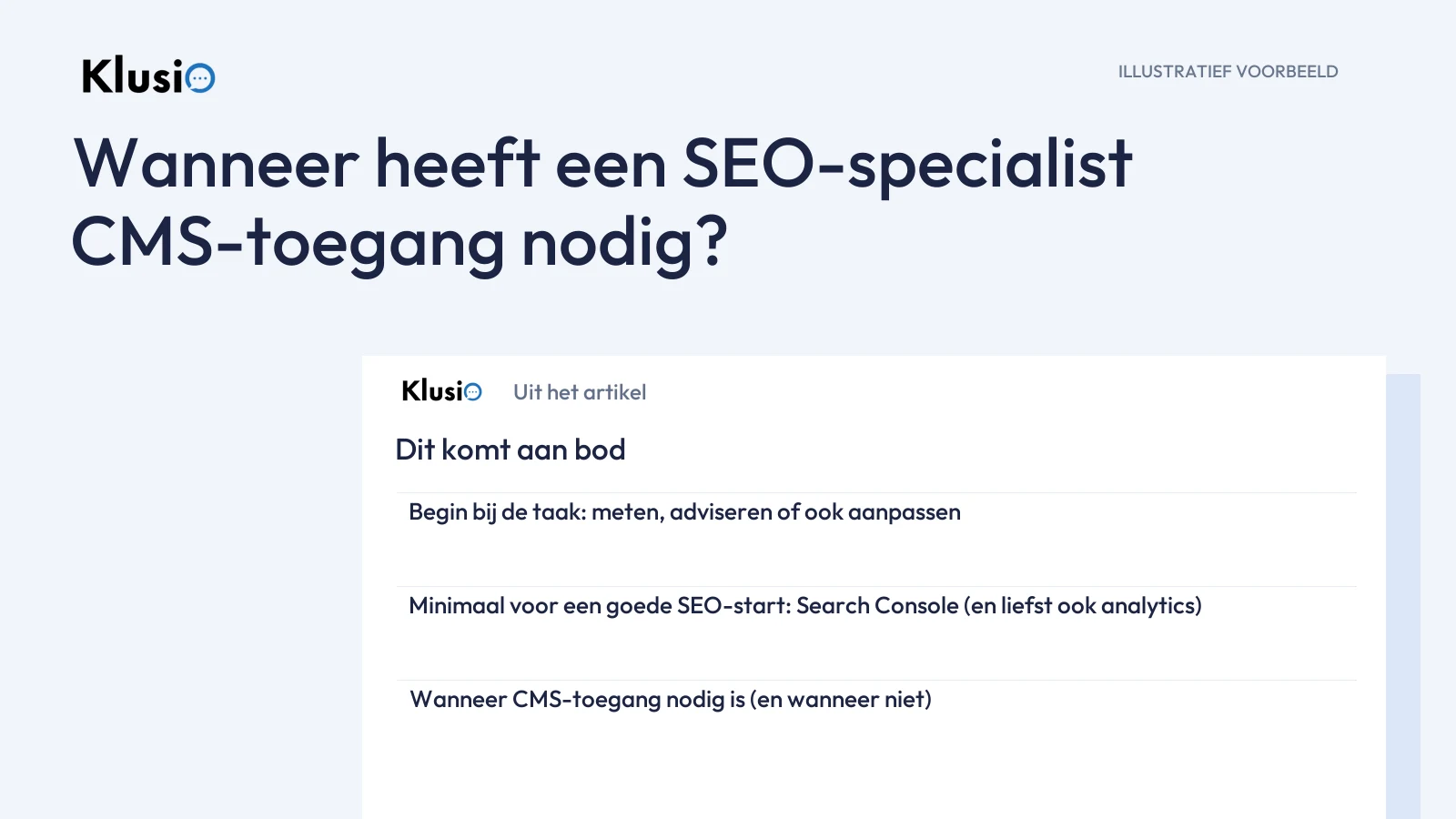
Start with the task: measuring, advising, or also making changes
An SEO specialist can roughly do three things. What you choose determines the access:
- Measuring and research: seeing what’s happening (impressions, clicks, indexing, errors), and where opportunities or blockers are.
- Advising: a concrete list like “change this on page X / template Y / setting Z”. You (or your web developer) implements it.
- Making changes and publishing: the specialist adjusts content/technical elements themselves and pushes work live on your site.
- Google Search Console: grant access so someone can use Performance, Indexing and URL Inspection.
- Google Analytics (if you use it): so behavior on the site can be linked to landing pages and channels.
- View/monitor only (read reports, flag opportunities and problems): grant a Restricted user if that turns out to be enough for your situation. This is the “viewing role”.
- Active debugging (e.g., checking things with URL Inspection, following up on fixes and validating them): grant a Full user. This is the role that sees data and can take actions.
- Management needed in Search Console (for example adding/removing extra users or managing settings): then you’re looking at Owner. Only do this if you really want someone to manage Search Console too, because owners have broad control.
- publishing new or updated pages/texts
- adjusting titles, meta descriptions, headings and internal links
- implementing redirects, canonicals or noindex settings (depending on your setup)
- whether important pages are accidentally behind a login
- whether robots.txt or other settings block something that should be visible
- whether Google sees the same page as your visitor (rendering in URL Inspection)
- Search Console access via user roles (no shared login).
- Analytics access via user roles (no shared login).
- CMS access only if the specialist will also publish or make changes.
- Hosting/server access (only needed for specific technical work).
- DNS or domain management (only needed for migrations, email/redirect issues, or verification situations).
- “Here’s the admin password” (prefer roles + invitations, so you can revoke access without breaking accounts).
- developers.google.com (developers.google.com)
- support.google.com (support.google.com)
- Get started (developers.google.com)
Not sure? Then almost always start with measuring + advising. You can add publishing access later if you find you’re not getting around to implementing things yourself.
Minimum for a good SEO start: Search Console (and preferably analytics too)
If someone seriously wants to do SEO, you want them to be able to see how Google views your site: what gets indexed, where the errors are, which search queries generate impressions and clicks. Many of those reports aren’t public and require verified access because they show confidential site data. That’s exactly why various debug tools and reports only work for a verified site user1.
In concrete terms, that usually means:
In Search Console, you work with roles. Important detail: a property (your site profile) must have at least one verified owner2, and owners can add or remove other users. So keep yourself (or your company) as the verified owner, and make one concrete agreement before inviting someone: should your specialist only be able to view, or also be able to perform actions?
Can’t figure it out? Then this is the practical follow-up question to your SEO specialist: “Which checks do you want to do in Search Console, and do you only need visibility for that, or also actions?” Then choose the lowest role that fits.
When CMS access is needed (and when it isn’t)
CMS access (WordPress, Wix, Shopify, custom) is needed if you agree that the SEO specialist will actually change or publish things on your website. Think of:
If someone only measures and advises, CMS access often isn’t needed to get started. You can still collaborate smartly by having the specialist point very precisely for each recommendation to “where” it needs to happen (page, template, setting), so you or your web developer can implement it quickly.
The technical check you often forget: can Google even reach your site?
For SEO, the basic work is that Google can crawl your pages and important resources. Google explicitly states that pages and resources intended to be crawled must not be blocked via robots.txt and must be accessible to an anonymous visitor3.
That doesn’t mean you have to open up your entire site, but it does mean you check together:
What you do grant, and what you’d better not just “quickly” hand over
This is the practical checklist we use ourselves if you want to start safely.
Usually yes (depending on the task)
Only give if it’s really necessary
Want us to arrange this for you?
If you’re reading this because you’re considering handing work off: in our explanation of how SEO works at Klusio, you can see how we link SEO to work that goes live and is then measured again. But even then the core remains the same: you decide what may happen automatically, and what access comes with that.